
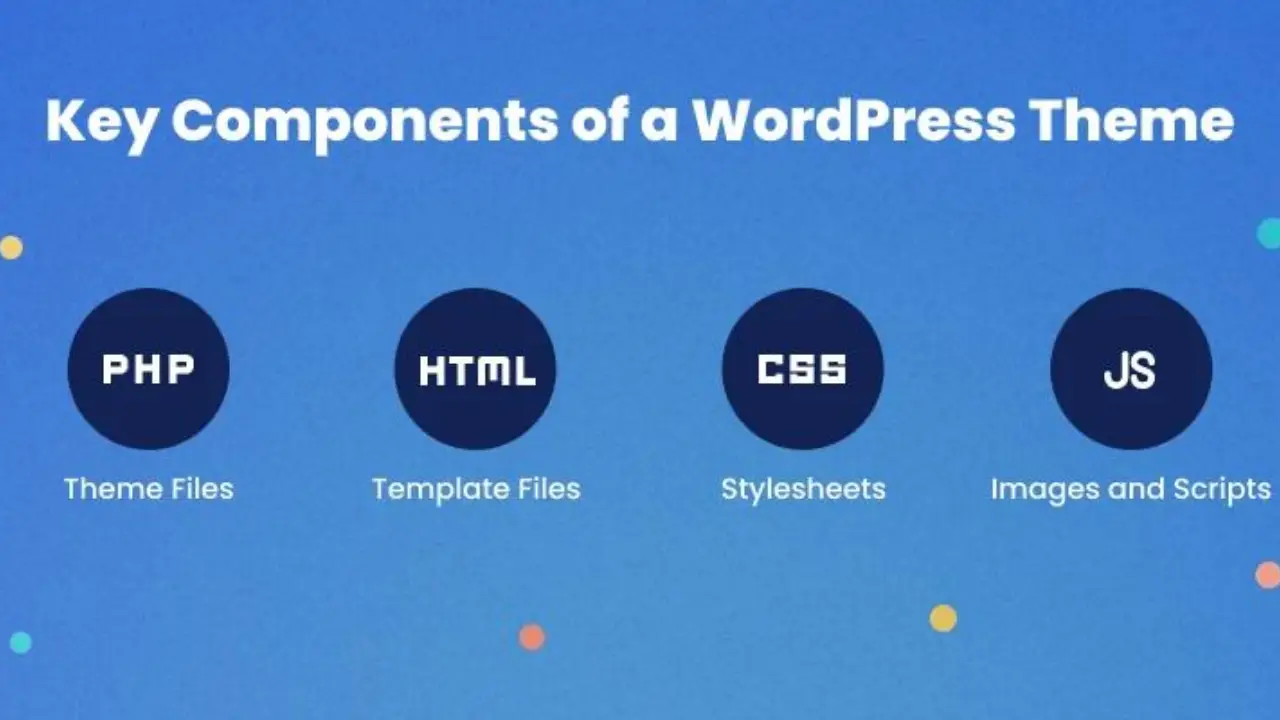
A WordPress theme controls the design, layout, and overall appearance of a website. While WordPress provides thousands of ready-made themes, developers can create a custom WordPress theme to have complete control over the website’s design and functionality.
In this beginner-friendly guide, we’ll learn the basic steps to create a custom WordPress theme from scratch.
What Is a Custom WordPress Theme?
A custom WordPress theme is a theme developed specifically for a website instead of using a pre-built theme.
A custom theme allows you to control:
- Website layout
- Header and footer
- Colors and fonts
- Navigation menu
- Blog layout
- Page templates
- Custom functionality
Step 1: Create a Theme Folder
Go to your WordPress installation:
wp-content/themes/
Create a new folder:
my-custom-theme
Your theme will be developed inside this folder.
Step 2: Create style.css
Create a file called:
style.css
Add the WordPress theme information:
/*
Theme Name: My Custom Theme
Author: Your Name
Description: A simple custom WordPress theme
Version: 1.0
*/
You can also add your website CSS below this section.
Step 3: Create index.php
Create:
index.php
This is the main template file of a basic WordPress theme.
<?php get_header(); ?>

<main class="container">

    <?php if ( have_posts() ) : ?>

        <?php while ( have_posts() ) : the_post(); ?>

            <article>
                <h2><?php the_title(); ?></h2>

                <?php the_content(); ?>
            </article>

        <?php endwhile; ?>

    <?php endif; ?>

</main>

<?php get_footer(); ?>
The WordPress Loop is used to display posts and content.
Step 4: Create header.php
Create:
header.php
Example:
<!DOCTYPE html>
<html <?php language_attributes(); ?>>

<head>
    <meta charset="<?php bloginfo( 'charset' ); ?>">
    <meta name="viewport" content="width=device-width, initial-scale=1">

    <?php wp_head(); ?>
</head>

<body <?php body_class(); ?>>

<header>
    <h1>
        <a href="<?php echo esc_url( home_url( '/' ) ); ?>">
            <?php bloginfo( 'name' ); ?>
        </a>
    </h1>
</header>
The header.php file contains the common header section of your website.
Step 5: Create footer.php
Create:
footer.php
Example:
<footer>
<p>
© <?php echo esc_html( date( 'Y' ) ); ?>
<?php bloginfo( 'name' ); ?>
</p>
</footer>
<?php wp_footer(); ?>
</body>
</html>
The footer is included using:
<?php get_footer(); ?>
Step 6: Create functions.php
Create:
functions.php
This file is used to add theme functionality.
For example:
<?php

function my_custom_theme_setup() {

    add_theme_support( 'title-tag' );

    add_theme_support( 'post-thumbnails' );

    register_nav_menus(
        array(
            'primary' => 'Primary Menu',
        )
    );
}

add_action( 'after_setup_theme', 'my_custom_theme_setup' );
This enables:
- Dynamic page titles
- Featured images
- Navigation menus
Step 7: Add CSS
You can add your basic CSS to style.css.
body {
    margin: 0;
    font-family: Arial, sans-serif;
}

.container {
    width: 90%;
    max-width: 1200px;
    margin: auto;
}

header,
footer {
    padding: 20px;
}
For larger projects, CSS and JavaScript should be loaded using WordPress’s enqueue functions.
Basic Theme Structure
After completing these steps, your theme can look like this:
my-custom-theme/
│
├── style.css
├── index.php
├── functions.php
├── header.php
└── footer.php
You can later add additional files such as:
single.php
page.php
archive.php
404.php
sidebar.php
These files allow you to create different layouts for posts, pages, archives, and other content.
How to Activate Your Custom Theme
After creating the theme:
- Open your WordPress dashboard.
- Go to Appearance → Themes.
- Find your custom theme.
- Click Activate.
Your custom theme is now active.
Final Thoughts
Creating a basic WordPress theme is not difficult if you understand the core files and the WordPress Loop.
The basic structure is:
Theme Folder
      ↓
style.css
      ↓
index.php
      ↓
header.php + footer.php
      ↓
functions.php
      ↓
Activate Theme
Once you understand these fundamentals, you can move on to more advanced WordPress development such as custom post types, ACF, custom Gutenberg blocks, WooCommerce customization, REST APIs, and custom plugins.
A custom theme gives you full control over your website’s design, structure, performance, and functionality.