
If you are working with WordPress websites, one file controls the heart of your installation — wp-config.php.
Whether you are a beginner blogger, WordPress developer, or someone managing a business website, understanding this file can help you improve security, performance, debugging, and overall website control.
In this guide, we’ll break down what wp-config.php is, why it matters, and the most useful configurations you should know.
What is wp-config.php?
The wp-config.php file is one of the core configuration files in WordPress.
It stores essential settings that allow your website to connect with the database and run properly.
This file contains:
- Database credentials
- Security authentication keys
- WordPress debugging settings
- Memory limits
- Auto-update controls
- File permissions and security rules
Without this file, WordPress simply won’t work.
Where is wp-config.php Located?
Normally, the file is found in your WordPress root directory.
Example:
public_html/
 ├── wp-admin/
 ├── wp-content/
 ├── wp-includes/
 ├── wp-config.php
You can access it using:
- cPanel File Manager
- FTP clients like FileZilla
- SSH terminal access
Basic Structure of wp-config.php
A standard configuration looks like this:
define('DB_NAME', 'database_name');
define('DB_USER', 'database_username');
define('DB_PASSWORD', 'database_password');
define('DB_HOST', 'localhost');
These values connect your WordPress website with the database.
If any value is incorrect, your website may show:
“Error Establishing Database Connection.”
Enable Debug Mode for Developers
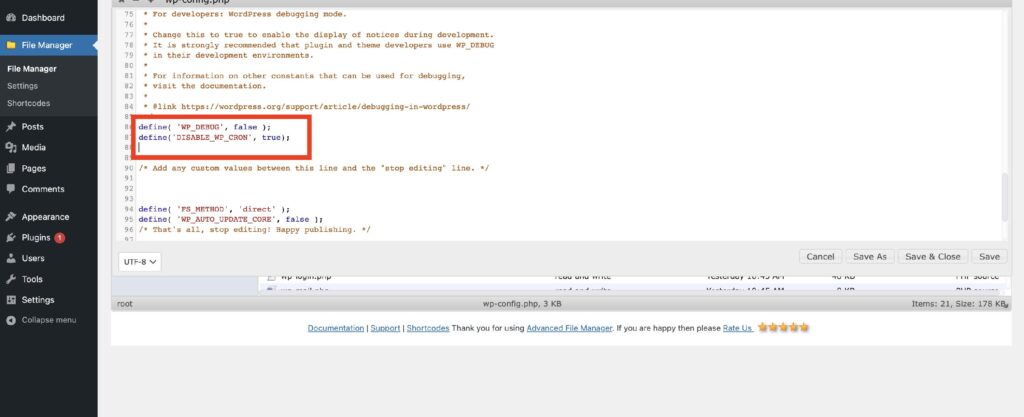
If you are a developer you can force WordPress to show errors and warnings that will help you in theme and plugin debugging. To enable debug mode you just have to set WP_DEBUG value to true, as shown below:
Add this code:
define('WP_DEBUG', true);
For better debugging logs:
In such situations, you can force WordPress to keep memory of errors and warning in debug.log file, placed in /wp-content folder. To enable this feature, copy and paste the following code in your wp-config.php file:
define('WP_DEBUG', true);
define('WP_DEBUG_LOG', true);
define('WP_DEBUG_DISPLAY', false);
This stores errors in:
/wp-content/debug.log
Useful when building custom plugins or troubleshooting errors.
Increase WordPress Memory Limit
Sometimes websites crash due to PHP memory issues. The maximum memory size depends on the server configuration. In case you didn’t have access to php.ini file, you can increase memory limit just for WordPress by setting the WP_MEMORY_LIMIT constant in wp-config file. By default, WordPress try to allocate 40Mb to PHP for single sites and 64MB for multisite installations. Of course, if PHP allocated memory is greater than 40Mb (or 64Mb), WordPress will adopt the maximum value.
To increase memory:
define('WP_MEMORY_LIMIT', '256M');
Benefits:
- Better plugin performance
- Faster page builders
- Improved large website handling
Especially useful when using plugins like:
- Elementor
- WooCommerce
- Backup plugins
Improve Website Security
Security is one of the biggest reasons to edit wp-config.php.
Disable Theme & Plugin File Editing
Prevent hackers from editing files inside admin panel. We can use wp-config file to increase site security. In addition to changes to the file structure we’ve looked at above, we can lock down some features that could open unnecessary vulnerabilities. First of all, we can disable the file editor provided in the admin panel. The following constant will hide the Appearance Editor screen:
define('DISALLOW_FILE_EDIT', true);
Force SSL Login
Protect admin login sessions. A security feature is Administration over SSL. If you’ve purchased an SSL certificate, and it’s properly configured, you can force WordPress to transfer data over SSL at any login and admin session. Use the following constant:
define('FORCE_SSL_ADMIN', true);
Change Database Table Prefix
Default:
$table_prefix = 'wp_';
Safer custom version:
$table_prefix = 'dinesh_';
This makes SQL injection attacks harder.
Limit Post Revisions
WordPress stores revisions every time you edit posts.
Too many revisions can slow databases.
Limit them using:
define('WP_POST_REVISIONS', 5);
Or disable completely:
define('WP_POST_REVISIONS', false);
Benefits:
- Smaller database
- Faster backups
- Better database performance
Control Automatic Updates
WordPress automatically installs minor security updates. Starting from version 3.7, WordPress supports automatic updates for security releases. This is an important feature that allows site admins to keep their website secure all the time.
Disable all updates:
define('AUTOMATIC_UPDATER_DISABLED', true);
Enable full updates:
define('WP_AUTO_UPDATE_CORE', true);
Use carefully, especially on production websites.
Protect wp-config.php from Hackers
Because this file stores database credentials, protecting it is critical.
If using Apache HTTP Server, add this to .htaccess:
<files wp-config.php>
order allow,deny
deny from all
</files>
If using Nginx:
location ~* wp-config.php {
 deny all;
}
You can also set permissions:
440 or 400
This reduces unauthorized access risk.
Common Mistakes to Avoid
Avoid these errors:
- Editing the file without backup
- Deleting security keys accidentally
- Leaving debug mode enabled on live sites
- Using default database prefixes
- Sharing database credentials publicly
Why Developers Should Learn wp-config.php
If you want to become a serious WordPress developer, understanding wp-config.php is essential.
It helps you:
- Troubleshoot website errors
- Improve security
- Optimize performance
- Manage advanced configurations
- Debug plugin and theme issues
Final Thoughts
The wp-config.php file is much more than a configuration file. It is the control center of every WordPress website. Learning how to manage it properly can help you build faster, safer, and more professional websites.
If you are building WordPress sites regularly, mastering this file will save you hours of debugging and make you a better developer.